
ShareX
Released Oct 2015
ShareX is a free and open source program that can capture or record selected area from the screen with a single keypress, automatically save them to your hard disk/clipboard, and instantly upload them to an image/file hosting service and then can copy the URL to your clipboard.
95% positive · 8,502 reviews
Not yet
Released, but still in active development
Medium confidence
Active Development
Not yet
Released, but still in active development
Medium confidence
Active Development
Where to get it
Free on Steam
Evaluation
ShareX is a free and open source screen capture and sharing utility that has been on Steam since October 2, 2015. The ShareX Team has maintained a long-running pattern of major version releases, each delivering substantial new features: version 11.0 launched on June 10, 2016 with a major annotation overhaul; version 12.0 on November 30, 2017 brought extensive image editor improvements; version 13.0 on August 28, 2019 added dark theme and thumbnail view; version 14.0 on July 9, 2022 added zoom, offline OCR, and history window improvements; version 15.0 on January 24, 2023 introduced a new dark theme, a "Pin to screen" tool, and screen recording pause support; and version 16.0 shipped on March 17, 2024 with further feature additions.
The intervals between major releases have ranged from roughly 1 to 3 years. The most recent major release was version 16.0 on March 17, 2024 — approximately 18 months ago as of today (October 8, 2026). While this does place us beyond the shorter inter-release gaps in the history, the widest gap observed (July 2022 to January 2023 is short; the largest is August 2019 to July 2022, nearly 3 years). At 18 months since the last major release, we are within the outer bound of the established cadence window. No developer statement has indicated that development is concluding, and no post announces a final version. Given the decade-long sustained pattern of meaningful version releases with no termination signal, the tool continues to receive active development work.
Evidence
ShareX 16.0 released — most recent major version update, the latest in a long series of feature-rich major releases.
ShareX 15.0 released with new dark theme, Pin to screen tool, and screen recording pause support.
Media
Details
Developer
Publisher
ShareX Team
Achievements
—
Platform
Windows
Controller
—
Steam Deck
Unsupported
About this game
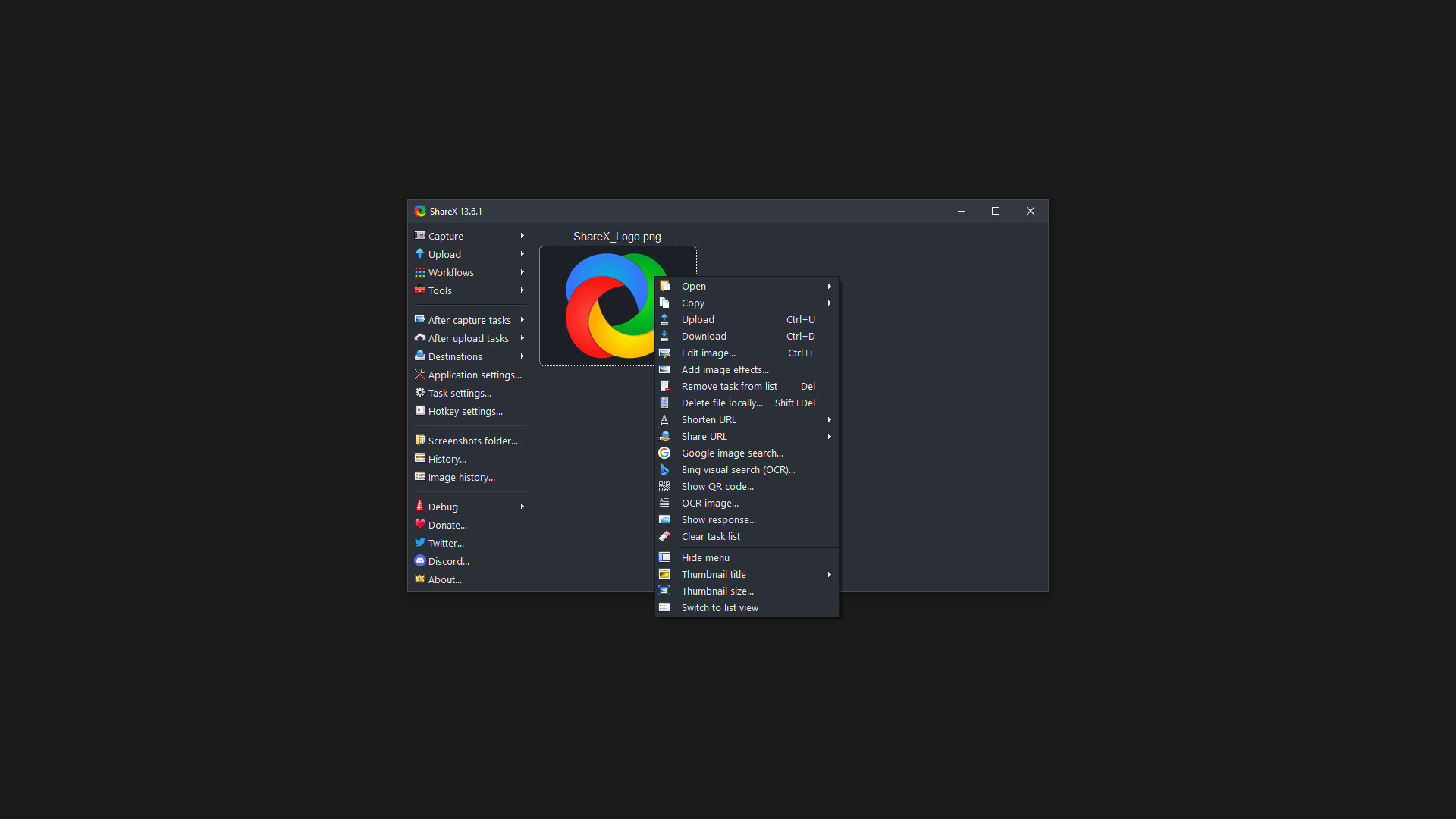
ShareX is a free and open source program that lets you capture or record any area of your screen and share it with a single press of a key. It also allows uploading images, text or other types of files to over 80 supported destinations you can choose from.
ShareX supports many ways to capture or record your screen. The main capture methods are:
There are many configurable screen capture settings such as showing the cursor, transparent window capture, delayed capture, multiple region selection with different shapes, etc.
After the capture the following automated tasks can be executed:
For example, the captured image can be opened in image editor and after that, the image can be automatically saved to the hard disk and uploaded to your destination of choice.
ShareX allows you to upload any type of files with these methods:
After the upload, any of the following automated tasks can be executed:
For example, the uploaded image URL can be automatically shortened using one of the 15 URL shortener services and the shortened URL can be copied to the clipboard.
ShareX also comes with a few simple productivity tools:
ShareX has an advanced hotkey system which allows you to use any of these capture methods, upload options or tools with their own task settings. These are called "Workflows". Workflows allow each hotkey to have its own after capture tasks, after upload tasks, destination etc. For example, you can set your screen recording hotkey to upload to a specific destination, bypassing the default destination. This way, only videos will be uploaded to this configured file destination.
ShareX supports many ways to capture or record your screen. The main capture methods are:
- Fullscreen
- Active window
- Active monitor
- Window menu
- Monitor menu
- Region
- Region (Light)
- Region (Transparent)
- Last region
- Custom region
- Screen recording
- Screen recording (GIF)
- Scrolling capture
- Webpage capture
- Text capture (OCR)
- Auto capture
There are many configurable screen capture settings such as showing the cursor, transparent window capture, delayed capture, multiple region selection with different shapes, etc.
After the capture the following automated tasks can be executed:
- Show quick task menu
- Show "After capture" window
- Add image effects / watermark
- Annotate image
- Copy image to clipboard
- Print image
- Save image to file
- Save image to file as...
- Save thumbnail image to file
- Perform actions
- Copy file to clipboard
- Copy file path to clipboard
- Show file in explorer
- Recognize text (OCR)
- Show "Before upload" window
- Upload image to host
- Delete file locally
For example, the captured image can be opened in image editor and after that, the image can be automatically saved to the hard disk and uploaded to your destination of choice.
ShareX allows you to upload any type of files with these methods:
- Upload file
- Upload folder
- Upload from clipboard
- Upload from URL
- Drag and drop upload
- Upload from Windows shell context menu
- Upload from Windows send to menu
- Watch folder
After the upload, any of the following automated tasks can be executed:
- Show "After upload" window
- Shorten URL
- Share URL
- Copy URL to clipboard
- Open URL
- Show QR code window
For example, the uploaded image URL can be automatically shortened using one of the 15 URL shortener services and the shortened URL can be copied to the clipboard.
ShareX also comes with a few simple productivity tools:
- Color picker
- Screen color picker
- Annotate image
- Image effects
- Hash check
- DNS changer
- QR code
- Ruler
- Directory indexer
- Image combiner
- Image thumbnailer
- Video thumbnailer
- FTP client
- Tweet message
- Monitor test
ShareX has an advanced hotkey system which allows you to use any of these capture methods, upload options or tools with their own task settings. These are called "Workflows". Workflows allow each hotkey to have its own after capture tasks, after upload tasks, destination etc. For example, you can set your screen recording hotkey to upload to a specific destination, bypassing the default destination. This way, only videos will be uploaded to this configured file destination.
Are these done yet?











Last evaluated Oct 8, 2026
Something about this evaluation looks wrong Report illegal or harmful content